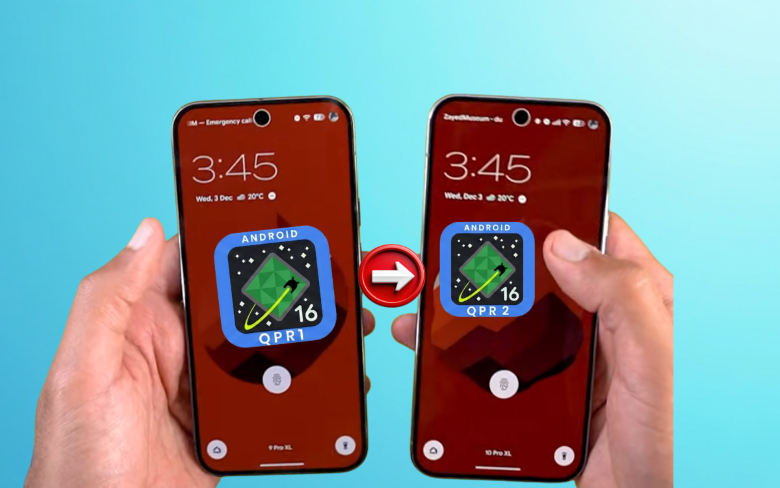
Android 16 QPR2 Is Here—And It’s Packed With Subtle But Game-Changing Pixel Features
If you’re a Pixel user, today is a good day. Google has officially rolled out the stable version of Android 16 QPR2 (Quarterly Platform Release 2) alongside the December 2025 Pixel Feature Drop. While the Feature Drop grabs headlines with flashy AI tools, QPR2 is where the real polish happens—refining your daily experience in ways you’ll notice the moment you unlock your phone.
I’ve been testing QPR2 on the Pixel 10 Pro XL for the past few days, and honestly? It feels like Google took a step back, listened to feedback, and delivered one of the most thoughtful mid-cycle updates in years. No gimmicks—just smarter gestures, cleaner visuals, tighter security, and features that actually make your life easier.
In this hands-on guide, I’ll walk you through every meaningful change in Android 16 QPR2, explain how to use them, and highlight what’s truly new (and what isn’t). Plus, I’ll flag privacy considerations and little-known settings you won’t find in the official changelog.
Let’s dive in.
🔒 The Lock Screen Just Got a Whole Lot Smarter
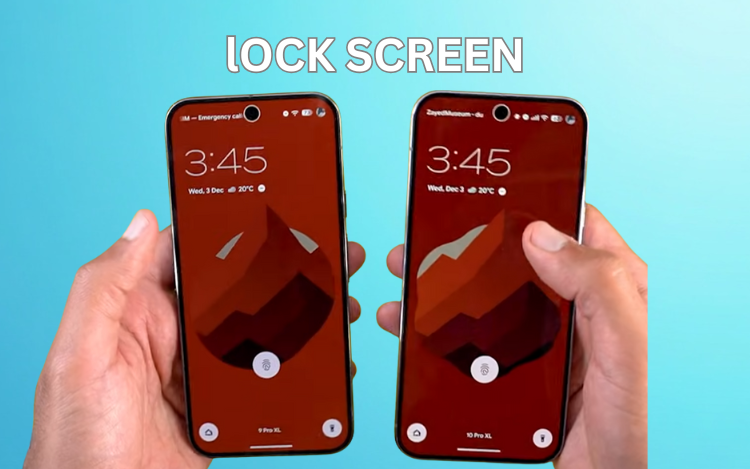
For years, Android’s lock screen felt static—just a clock, notifications, and maybe a wallpaper. Android 16 QPR2 changes that completely with the debut of lock screen widgets.
✨ A Tap, a Ripple, and a Gentle Vibration
First, a small but satisfying detail: if you’re using the default clock style, tapping the time now triggers a soft ripple animation paired with precise haptic feedback. It’s the kind of micro-interaction that makes your phone feel alive.
Even cooler? If your phone is awake but not unlocked (like when you glance at it on your nightstand), tapping the wallpaper triggers the same animation—but only if you’ve enabled the “Shapes” wallpaper effect in Wallpaper & Style.
Note: This only works with Google’s default clock. Switch to a third-party style, and the animation disappears.
📱 Lock Screen Widgets: Your At-a-Glance Dashboard
This is the star of QPR2. Swipe left from your lock screen, and you’ll enter a new space filled with widgets—just like your home screen, but private to your glance.
- The background blurs automatically for visual focus.
- You can add multiple pages of widgets.
- Tap any empty space → enter edit mode.
From there, you can:
- Remove widgets (tap → top-right “Remove” button)
- Resize vertically (width stays edge-to-edge)
- Reorder by dragging
- Add new widgets via the “+” button (opens the redesigned picker)
⚠️ Important Privacy Tip: These widgets are visible without unlocking your phone. Avoid sensitive apps like Keep, Messages, or banking tools. Stick to non-private info—weather, calendar events, music playback, or step count.
You can disable this feature entirely via:
Settings > Display & Touch > Lock Screen > Widgets on Lock Screen
Interestingly, Google removed the “Hub Mode” toggle that was in the beta—but the behavior remains.
🔌 What Is Hub Mode?
If you plug your Pixel into a charger and have screen saver turned OFF, your phone automatically switches to Hub Mode, showing your lock screen widgets like a mini smart display. Press the power button once to return to normal.
If screen saver is ON, it overrides Hub Mode. No way to disable Hub Mode directly anymore—but turning off lock screen widgets stops it entirely.
🏠 Home Screen & Launcher: Cohesion Over Chaos
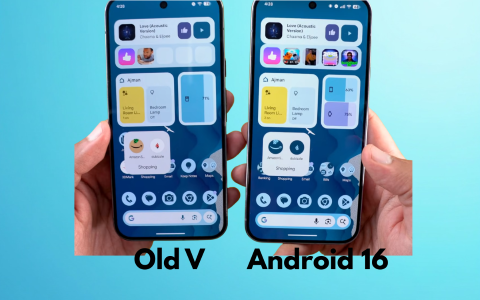
Google’s finally enforcing visual harmony across your Pixel home screen—and it shows.
🎨 Themed Icons: No More Mismatched Mess
Even if an app developer hasn’t adopted Material You, Android 16 QPR2 now forces all app icons to match your wallpaper’s color scheme. The result? A unified, calming home screen—no more jarring red icons on a blue palette.
🔍 Search Widget Gets a Bold Makeover
The Google Search bar at the top now uses more vibrant background colors derived from your wallpaper. But here’s the twist: all buttons are now black, except the Google “G” icon, which still follows your theme. The contrast is sharper, and it just feels more premium.
🖱️ App Shortcuts: Faster, Clearer, Themed
Long-press any app, and you’ll see three key upgrades:
- “Remove” button → uninstall without dragging to the trash
- “+” button → add to home screen instantly
- Themed shortcut icons → finally consistent with your wallpaper
You can still drag-and-drop apps, but these new buttons make management so much faster—especially on larger screens like the Pixel 10 Pro XL.
📐 Choose Your Icon Shape—System-Wide
For the first time on stock Android, you can change app icon shapes without a third-party launcher:
- Open Wallpaper & Style
- Scroll to Icons
- Pick from 5 options: Squircle, Circle, Rounded Square, Cylinder, or Tear Drop
It’s a small thing, but it lets you truly personalize your Pixel’s look.
📱 Multitasking Gets Precision Feedback
Split-screen users, rejoice. Android 16 QPR2 adds two smart improvements to multitasking:
- Haptic feedback when resizing → feel a gentle pulse every time you snap the divider to a new ratio
- 90:10 split option → give 90% of the screen to your main app, and keep a slim utility pane (e.g., calculator, notes) on the side. Tap the sliver to temporarily expand it.
Perfect for power users who want persistent tools without sacrificing space.
🧩 Widgets Picker: Smoother, Cleaner, Smarter
The widget selector has been completely rethought:
- “Featured” tab (with star icon) replaces “Suggested”
- “Browse” tab for all other widgets
- Smoother animations when switching categories
- Search bar now opens a dedicated page with a back button
- Categories use smaller, cleaner fonts
- Headers stay visible while scrolling (no more disappearing titles)
- Scrollbar removed for a minimalist look
👤 Brand-New “Users” Widget
Need to switch between profiles? Add the new “Users” widget to your home screen:
- Shows current user’s avatar
- Tap to switch accounts
- Add new users or open settings via the gear icon
Great for families or work/personal setups.
🔔 Notifications & Quick Settings: Little Tweaks, Big Impact
🎵 Dual Media Controls with Arrows
Running YouTube and YouTube Music? QPR2 shows left/right arrows to switch between active players—no more guessing which app is playing.
📝 In-Notification Feedback
Long-press any notification → tap the new feedback button (top-right) to send reports about the Notification Organizer (a December 2025 Pixel Drop feature). You’ll see exactly what data Google collects—and can opt out.
📋 Notification History Gets Organized
Each notification now lives in its own card, making logs easier to scan—especially when debugging spammy apps.
🛠️ Quick Settings Refined
- More breathing room between clock/date and network icons
- Data Saver icon redesigned
- Undo button in edit mode looks cleaner
- Home Controls have larger margins (subtle but better in dark mode)
⚙️ Settings: Security, Display & Accessibility Upgrades
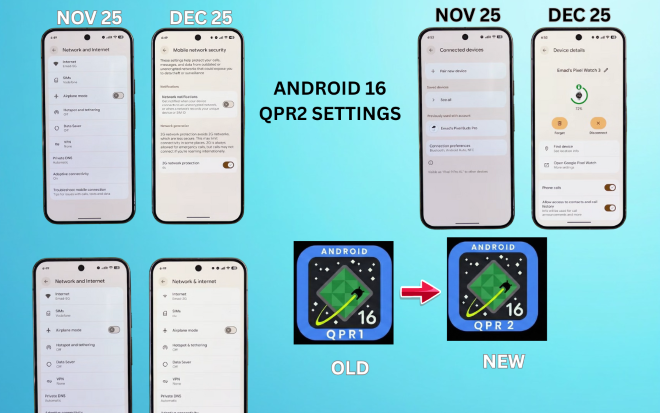
🔐 Network & Security: Proactive Protection
- “And” replaced with “&” in titles (e.g., “Hotspot & Tethering”)
- New “Mobile Network Security” section with:
- Network Notifications: Alerts for unencrypted Wi-Fi or SIM tracking
- 2G Protection: Blocks insecure 2G networks (now easier to find)
💡 Enhanced HDR Brightness: A “Killer” Feature
Under Settings > Display & Touch, you’ll find “Enhanced HDR Brightness”—a slider that lets you adjust HDR content brightness relative to SDR.
Want HDR to pop? Slide right. Prefer consistency? Match it to SDR. Or turn it off entirely.
🌙 Expanded Dark Theme
New “Expanded” dark mode option forces dark UI on all apps—even those that don’t support it natively. Great for OLED battery savings and eye comfort.
🔋 Other Notable Settings Tweaks
- Pixel Watch battery indicator now visible in Settings
- “Flash Notifications” renamed with clearer setup instructions
- Vibration sliders now show step count visually
- Time Zone Change Alerts: Get notified when your location updates time automatically
- Developer Options: “Boot with 16KB page size” removed (likely deprecated)
🛡️ Security & Privacy: Google’s Quiet Confidence
- Live Threat Detection: Continuously scans apps for suspicious behavior—like unexpected data access or hidden crypto miners.
- Material You 3 Expressive design across all privacy screens
- PIN entry screen redesigned: centered lock icon, bold text, bordered input box
- Health Connect > Devices: Now lets your phone act as a step counter—no wearable needed
👨👩👧 Parental Controls: Finally Built-In
Big change: Digital Wellbeing and Parental Controls are now separate menu items.
- Parental Controls no longer redirects to Family Link
- Set daily limits, app timers, content filters—all inside Settings
- Family Link app still accessible via shortcut
A huge win for parents who just want simple controls without juggling apps.
👁️ Reduce Blur Effects: For Cleaner UI Lovers
New under Accessibility > Color & Motion:
“Reduce Blur Effects” → removes background blur from:
- App drawer
- Notification shade
- Recent apps
Ideal if you prefer sharp, distraction-free interfaces—or if you have visual sensitivities.
Every menu item here now also includes clear descriptions, making accessibility settings finally user-friendly.
📲 Performance & Stability: Rock-Solid
On the Pixel 10 Pro XL, QPR2 feels snappy and bug-free:
- App launch speeds: excellent
- No crashes or glitches during testing
- Geekbench 6 scores:
- Single-core: 2,313
- Multi-core: 6,269
(Noticeably better than beta versions)
⚠️ Minor Bugs (Non-Dealbreakers)
- Media output switcher: slight animation delay
- Media controls in Quick Settings: minor alignment issue when expanded
Both are cosmetic and don’t affect daily use.
🖼️ Bonus: New Wallpapers from “In-Depth Take”
QPR2 ships with fresh wallpapers via the “In-Depth Take Reviews” app (free on Play Store). These support Android 16 effects like Shapes and Color Extraction—perfect for showing off the new themed icons.
Final Thoughts: Why QPR2 Matters
Android 16 QPR2 isn’t about flashy AI—it’s about respecting your time, your eyes, and your privacy. From lock screen widgets that put info at your fingertips, to security features that work silently in the background, Google is delivering mature, user-first improvements.
If you’re on a Pixel 8 or newer, update as soon as it lands. And take 10 minutes to explore these new settings—you’ll likely find a feature that makes your phone feel yours in a way it didn’t before.
What’s your favorite QPR2 feature? Let me know in the comments!
If You are Apple User.









2 thoughts on “Android 16 QPR2: All New Pixel Features Explained”